
| Converting DVD to AVC with Nero Recode 3 | You are viewing Page 3 of 3 -- Go to page 1 , 2 , 3 |
Video Encoder Settings
Before you're ready to let Recode encode your video and audio there are a couple of video encoding settings to consider. These options will have a major effect on both encoding time and video quality.
 |
1. Bitrate or Size
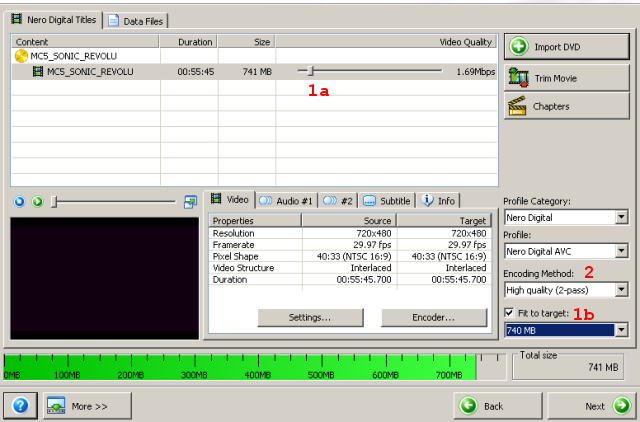
Depending on whether you have a target bitrate in mind or just want to specify the target size for the output file (including audio and subtitles) you can either use the bitrate slider near the top of the main Recode window (1a) or the Fit to target option at the bottom right (1b). If you choose to set the bitrate the size of your output file (including all audio and subtitles) will be shown at the bottom of the window.
2. Number of Passes (Quality)
You can choose to encode in either 1 or 2 passes. While 2 pass encoding takes longer, it also results in higher quality. Since Recode's AVC encoder can complete the first pass much faster than other encoders it's recommended to stick with 2 pass encoding unless you're really in a hurry or have a very old computer.
Output Options
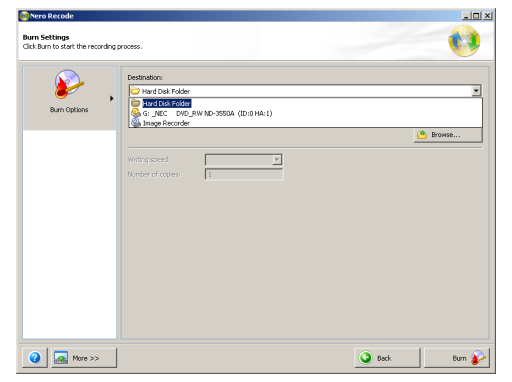
The Next button will bring you to the Burn Settings dialog. The Destination determines whether the resulting AVC file will be automatically burned, used to create a disc image (using the Image Recorder), or simply written to the hard drive. Use the browse button to select the location for the AVC file to be written. If you've selected a burner or the Image Drive option the burning process will follow the completion of encoding. You can also select the burn speed and number of copies at this time.
Encoding
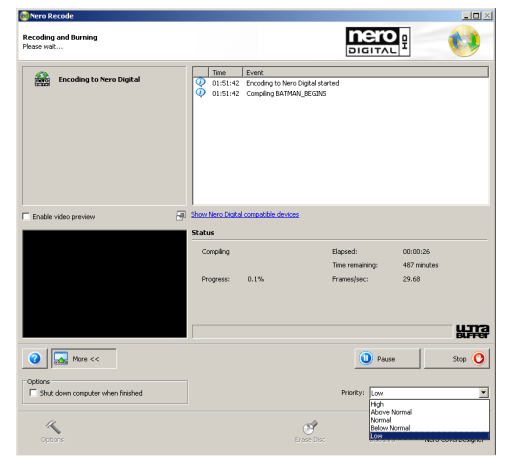
Now you're ready to encode. The entire process will generally take several hours. If you wish to use your computer for other things during this time you should click the Next button at the bottom of the window to bring up additional options. On the right side you'll see a dropdown list labeled Priority. Setting it to low will allow you to run other programs while having a limited impact on encoding time.
Where To Go NextNow that Recode has finished creating an MP4 file you'll need to play it. If you have a DVD player capable of playing AVC files you can simply burn it to disk. If you're planning to play it on your computer you may want to check out our guide for Playing MP4 Files. | |
| Converting DVD to AVC with Nero Recode 3 | You are viewing Page 3 of 3 -- Go to page 1 , 2 , 3 |
Version History
v1.0 2008.06.06 Original version by Rich Fiscus
previousVideo and Audio Settings
Written by: Rich Fiscus