
| Customize x264 Profiles with MeGUI | You are viewing Page 5 of 5 -- Go to page 1 , 2 , 3 , 4 , 5 |
Using Your New Profile
As soon as you create your new profile you can use it in MeGUI. It will show up in the standard list of profiles to be selected for encoding. However, that's not the only thing you can do with it.
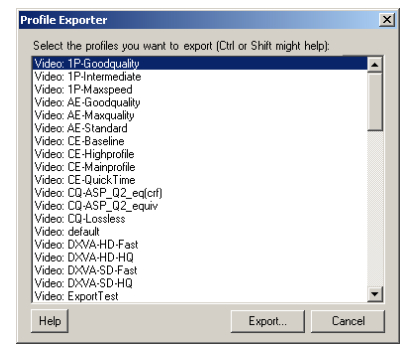
Exporting Profiles
Just as MeGUI can import profiles created by other people, it also includes an Export feature which can be used to create a file ready to be imported into another MeGUI installation. Simply select Export Profiles from the File menu and you'll see a list of available profiles to export. Select one or more and click the Export button. After selecting the location to save the export in, MeGUI will create a Zip file containing the profile(s) you exported.
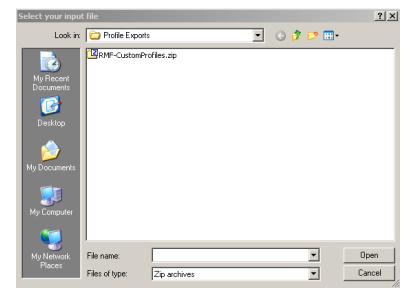
Importing
Once you have one or more profiles exported you can easily move them from one computer to another, or even send them via email or just about any other file transfer method. If you need to import them back into MeGUI you can use the Import Profiles option from the File menu. You can leave your profiles in the Zip file created during the Export process and select it directly. MeGUI will find the profiles inside and show them to you in a window nearly identical to the Profile Exporter so you can select any you want to import.
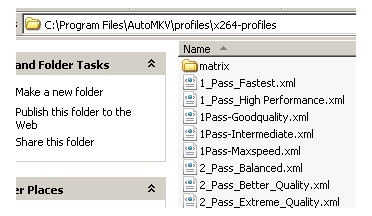
MeGUI Profiles In AutoMKV
If you prefer to use AutoMKV for AVC encoding it doesn't necessarily mean giving up MeGUI entirely. While AutoMKV is somewhat more automated, its simplicity is achieved partly by hiding some settings from the typical user. Since it doesn't include a profile editor of its own, and since it can use MeGUI profiles as long as they're copied to that programs AVC profiles folder. By default that's C:\Program Files\AutoMKV\profiles\x264-profiles.
You'll also need to extract the profiles (XML files) from the export archive created by MeGUI.
Return To Your GuideIf you came here from another guide, select the appropriate link below to return. Return to Encoding From DVD to AVC with AutoMKV< | |||
| Customize x264 Profiles with MeGUI | You are viewing Page 5 of 5 -- Go to page 1 , 2 , 3 , 4 , 5 | ||
Where to go from hereEncoding From DVD to AVC with AutoMKVGuideLinkConvert MPEG-2 Captures to AVC with AutoMKVGuideLinkEncoding From DVD to AVC with AutoMKVGet help converting video from DVD to AVC in our guide titled Encoding From DVD to AVC with AutoMKV. |
Version History
v1.0 Original version by Rich Fiscus
previousThe Advanced Tab
Written by: Rich Fiscus