
Creating a ringtone
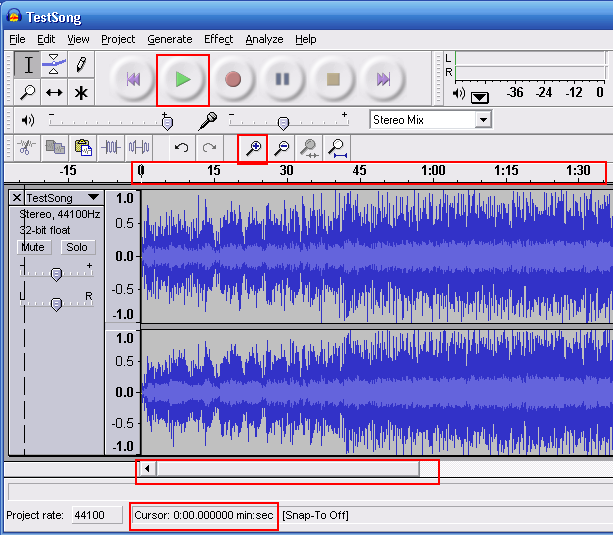
First we want to open up Audacity and take a minute to familiarize yourself with the interface. Audacity has some very powerful tools and we will be using a couple today.
Find the song you want to use as your ringtone and drag it into the program. You can alternatively go up to File and press Open and select your file that way.
Once it is imported to the program we will want to figure out what 30 second clip we want to make our ringtone. You can do this prior to opening the program but I will show you how to use Audacity for such a task.
First off we want to hit the Zoom button as seen in the picture at right. It looks like a magnifying glass with a + in it. Alternatively, you can go up to View in the toolbar and select Zoom In. You can also use the hotkey, which is Ctrl+1. By zooming in, it will give you a better sense of where you are in the song as the timestamps are more visible. Please also note that on the bottom of the screen there is a cursor marker which will be important when we are cutting 30 seconds.
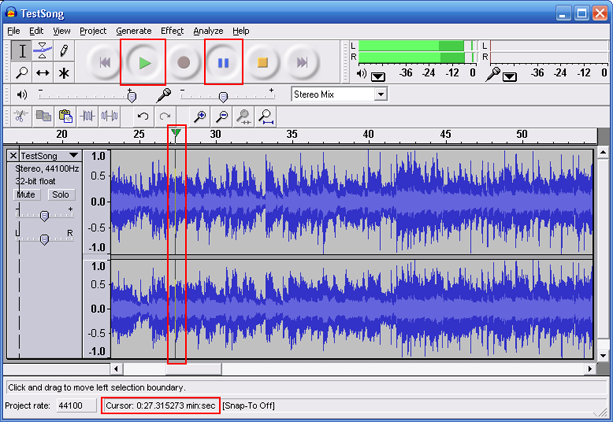
Now, what you want to do is play the song the full way through so you can select what 30 second clip you want to use. Hit the large green Play button to start playback of the song. Once you know where you would like to begin the ringtone, hit the large blue Pause button.
Take this opportunity to zoom in a few more times until you can clearly see where the green line and arrow are. You then want to take your cursor and click on that green line. For my example, the ringtone will be starting at about 27 seconds. You can now zoom out using the magnifying glass with the - in it so you can see more of the song, or at least the next 30 seconds of it.
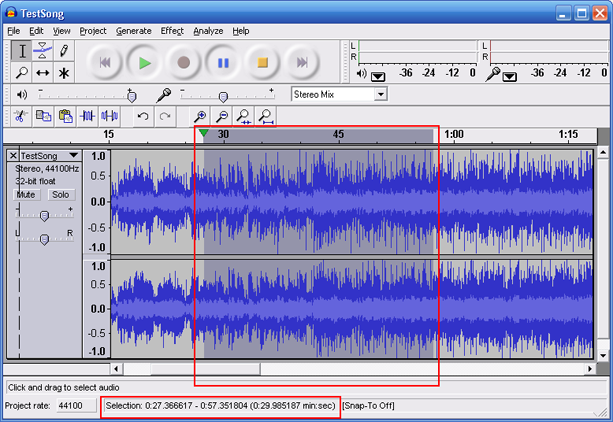
Click again on the starting point but don't release this time, instead drag it to the right make sure to keep eye on the cursor marker on the bottom. You will now be highlighting and the cursor selection on the bottom should be moving up. Once you have hit 30 seconds (or as close as possible) you can release the mouse and a 30 second clip will be highlighted. Now you must press the large yellow Stop button to remove the green arrow. Finally, go up to Edit and select Trim or use the hotkey Ctrl+T. This will cut the rest of the song off leaving you with the 30 second clip you selected.
On the next page I will teach you how to export your 30 second clip as an MP3.
Written by: Andre Yoskowitz