
Output As AVI
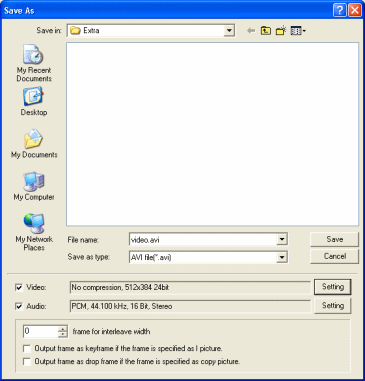 To output a file as AVI click File --> Output to File --> AVI File. To choose which codec you want to use click the Setting button beside the Video field. Do the same for the Audio. When you click the Save button the encoding to AVI begins immediately. For such a simple process not many people know that it is possible with TMPGEnc. The last thing we will look at is Batch Encoding.
Batch Encoding
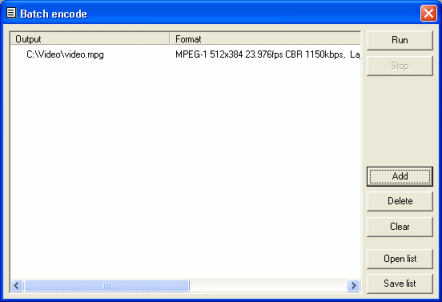 Click File --> Batch encode. You will now see a blank list. You can use the Add current project to batch list option under the File menu to add your current project to the list. Another way to add it to the list is on the last screen of the Project Wizard. Once you have filled the list with all the encoding you need done, all you have to do is click Run.
Finally
You should have learned enough about TMPGEnc now to do some impressive encoding with it. If you have any problems, please visit our Discussion forums and ask your questions there.
Version History
v1.0 -- 18th January, 2005, First version online (Dela)
previousAdvanced Settings
Written by: James Delahunty