
The Installer
Installation and configuration of Haali Media Splitter are essentially done in a single step. This means in order to change the main options you'll actually need to uninsall and reinstall the software. As this only takes a couple of minutes it's rarely an inconvenience.
1. Legacy Splitters
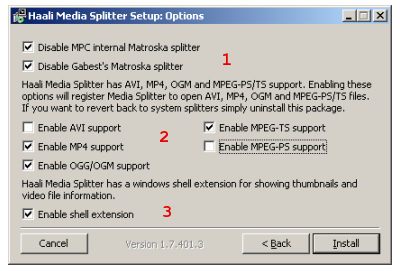
Depending on what software is installed on your computer, you may have an older Matroska splitter (called Gabest's Matroska Filter) installed. If you use Media Player Classic to play multimedia files it also has its own internal splitter for MKV files. You should disable both of these so the Haali splitter will be used instead.
2. Container Support
By default Haali Media Splitter will be configured as the default filter for opening MP4, MKV, OGG, and MPEG-2 TS (transport stream) files. AVI and MPEG-2 PS (program stream) aren't selected since they're natively supported by Windows. If you prefer you can select both of those formats as well, forcing Haali to be used to open files traditionally handled by Windows.
3. Shell Extension
Haali's shell extension allows thumbnails to be generated for video in containers its responsible for opening. If you uncheck this option, any file that Windows uses Haali Media Splitter to open won't have a thumbnail in Windows Explorer showing you the file's contents.
Changing Installation Options
The only way to change the options set during installation is to uninstall and re-install to get the configuration dialog. Although it's a small program, and can be installed and uninstalled quickly, be aware that there may be a system reboot required, so you should make sure you're not using any other programs during the uninstall process in particular.
Return To Your GuideIf you came here from another guide, select the appropriate link below to return. Return to How to Edit MP3 AudioReturn to How to Edit AAC (MP4) Audio |
Where to go from hereIntroduction to ffdshow
How to play MKV files
How to play MP4 files
How to play TS files
|
Version History
v1.0 2007.03.17 Original version by Rich "vurbal" Fiscus
v1.0.1 2008.11.24 Cross-links added by Rich "vurbal"Fiscus
previousIntroduction
Written by: Rich Fiscus