
| Running SageTV on Windows XP Media Center Edition | You are viewing Page 2 of 4 -- Go to page 1 , 2 , 3 , 4 |
MCE Background Services
Even when the interface to Windows Media Center isn't running there are services running in the background for monitoring remote control activity (opening Media Center with the Green Button) and scheduled recordings. In order to avoid inadvertantly starting Media Center or conflicts between Media Center scheduled recordings and SageTV you should turn these processes off. To do this you'll need to use the Services MMC console and MSConfig startup configuration utility.
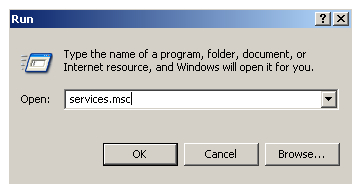
Services
Services can be configured through Microsoft's MMC (Microsoft Management Console) interface. You can open the Services console by opening the Run command on the Start menu and typing in services.msc
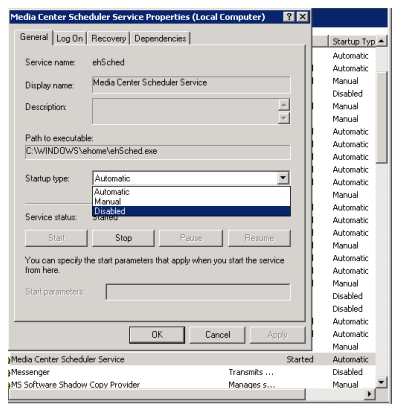
Media Center Services
In the Services console you'll need to find the Media Center Scheduler Service, and if present the Media Center Extender Service and disable them. If you decide to use Media Center again you can set them back to automatic. You can stop the services manually using the Stop button. The next time you reboot your computer they won't start automatically after being disabled.
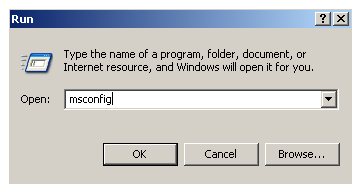
Configuring Startup Options with MSConfig
Go back to the Run command prompt on the Start menu and type in msconfig. This will open the System Configuration Utility where you can disable or enable programs that are set to start with Windows.
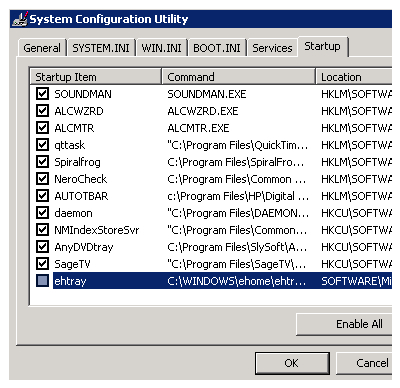
MCE Remote Service
The ehtray process responds to MCE remote commands, such as the Green Button command to start the Media Center application. Find its entry on the Startup tab and disable (uncheck) it. If you've never looked through the list of startup processes you may be tempted to disable other items. Resist that urge for now. When making major system changes it's best to go one at a time. That way if something stops working you know what broke it.
Reboot
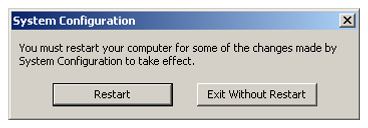
Once you have the MCE remote listener disabled and click the OK button you'll be prompted to reboot Windows. Once Windows is started again you can start installing SageTV.
Continued On Next PageOn the next page we'll walk through installation and first time configuration of SageTV, including screenshots of each step along the way. Page 3 - Installing and Configuring SageTV | |
| Running SageTV on Windows XP Media Center Edition | You are viewing Page 2 of 4 -- Go to page 1 , 2 , 3 , 4 |
Written by: Rich Fiscus