|
|
|
Guides and articles
Guides and articles
|
Part II -- Running TVersity and Configuring Important Settings |
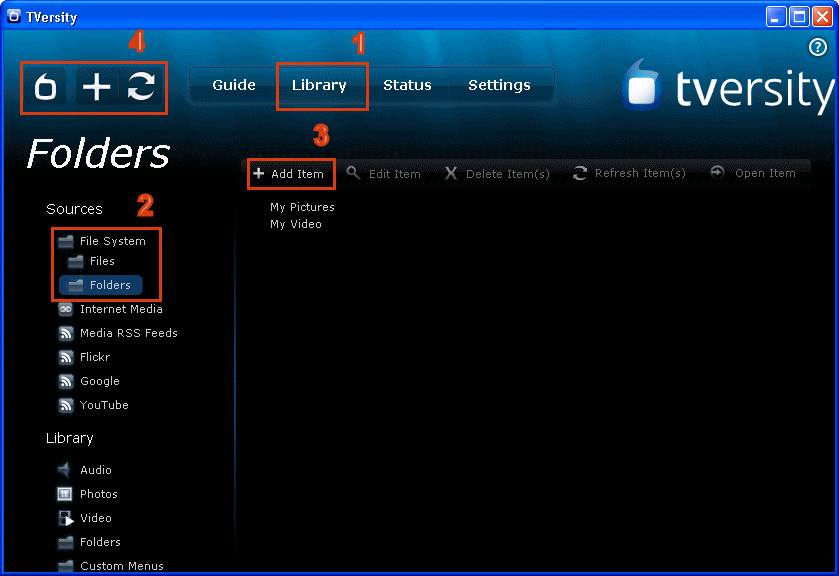
Install TVersity (Download Here!) and run the program. The interface is relatively easy to understand. There are three tabs, Sharing, Library and Settings. The Sharing tab will (usually) show first with some pre-loaded Internet links. We will look at adding local media to the library later on but the first thing we will do now is take a look at TVersity settings.
Important: Technical information
There are four main areas of the settings part of TVersity; General, Media Library, Transcoding and Internet Feeds. During this page we will address the settings off all of these areas. The length of this page is mostly due to the fact that we have cropped and resized specific areas of the settings. If you click on any of these cropped pictures, you will see the full-size screenshot loading (and can get back with the browsers back button, or the backspace key on your keyboard). A lot of these settings are not even really important, TVersity almost works right out of the box, so don't let the page length frighten you, you will see that you can just skip over the vast majority of the page as you read.
First we will take a look at the general settings of TVersity. Click the Settings tab in the program. You will have four choices now on the left side of the program (General, Media Library, Transcoding and Internet Feeds). The program should have General selected by default - if it does not, then click General and let's get this show on the road.
General Settings - Media Playback Device
The first changeable option is the Media Playback Device that you are to stream to. In this case that is an Xbox 360. If you want to set Xbox 360 here, go ahead, but on Auto Detect it will work anyway.
General Settings - Media Sharing Service
Under the Media Sharing Service option you have the ability to Stop, Start and Restart the server running the background that actually does the streaming (and transcoding if needed). This is effectively where you go to turn on and off TVersity. The other important thing to remember here is you have the option to set the Media Server to run at start-up so whenever you PC is on, it is ready for your Xbox 360 or other compatible multimedia device.
General Settings - Temporary Media Files
When TVersity is transcoding, streaming or downloading Internet feeds it needs to store temporary files. Here you will be able to put a cap on the amount of Temporary disk space TVersity is permitted to use. It is also important to remember that every now and then you click the Delete All Files button to remove Temporary files and free up disk space.
General Settings - Home Network
This is where you can input manual IP settings to limit the accessibility of TVersity on the network. Only set an IP address or a different than default port if you know what you are doing. The second option you can change is whether or not you want to allow requests to the TVersity server from outside the Home Network (over the Internet). It is not selected by default.
General Settings - HTTP Proxy
This setting applies to Internet feeds. Basically it can make Internet-based content appear completely like it has originated on your network to the Media Playback Device (Xbox 360). It is selected by default as it is known to improve compatibility with a lot of supported hardware.
General Settings - Maximum Timeshift
Timeshifting settings allow you to set how long the Media Server should store the history of live streams allowing you to pause the content and resume if you have to go the bathroom etc. Thirty minutes is the default amount of time.
Media Library Settings
Now that you have made all of your General Settings, click the Media Library option. Click any of the images below to enlarge them if you need to.
The first thing you can do is choose whether you want the default media library hierarchy in the TVersity program or a custom. This won't really affect TVersity's performance with streaming.
Library Settings - Media Library Refresh
This option is only there for you to set when the Media Library is refreshed, and doesn't really have an effect on streaming. Regardless, you can set the time of day for an automatic refresh or an interval (default is 24 hours) between refreshes. If you set the interval to 0 it will turn the feature off.
Library Settings - Media Library Display Properties
These settings allow you to select how your files will be viewable in your Media Library as indexed.
Modify filenames and tags for readability - This should be selected by default and it's recommended to keep it.
Prefix item's title with the title of the parent container or folder - Only select this option if your media library is presented in one long flat list of files.
Sort items under the folders category by file name - Select this option if your Media Library is presented as a Folder structure and not one flat list of files.
Read tags from AVI files - This option lets TVersity read useful tags from AVI files, which can be great for the media library but I would highly recommend not selecting this option as it adds more resource needs and its known to be unstable at times.
Library Settings - Media Library Reset
There is an option here to "Recreate Library". What this basically does is rescan all of your shared media. If you have a lot of video and audio files shared however, this process can take a painfully long time to complete, but it is very useful.
We will now take a look at TVersity's transcoding settings, these are important. Click Transcoder to see the settings now.
Transcoder Settings - When to Transcode
The first settings you can change determine when TVersity will automatically start Transcoding. The options are Never, Only When Needed and Always. Think about this for a second. The Xbox 360 console supports many common types of video directly, such as DivX, XviD, H.264/AVC etc. as it is, therefore if it encounters files that aren't supported, it will transcode them to Windows Media content and stream at the same time. If your computer is not able for this type of intensive process then the experience might not even be worth it. I highly recommend an "Only When Needed" selection.
The second option you can change here allows you to Decrease the bitrate if it is too high for the network. If you are working with a wireless connection that is less than 54Mbps, then perhaps you should opt for this selection. This is something you might want to change later if you have bad quality experiences with your streams.
Transcoder Settings - Maximum Video and Image Resolution
These settings let you determine the maximum resolution that can be created by the Transcoder. TVersity will always try to preserve the original resolution. The default setting of 400x300 is quite low, but still produces an OK result unless your video had a much higher resolution. If your video has a lower resolution than whatever you set here, it will not be modified. This is a setting you might want to remember to tweak with if you find that TVersity is performing well with your first setting, or indeed keep low if its performing badly.
Transcoder Settings - Windows Media Encoder
These options apply only when using an Xbox 360 console. The first option allows you to select whether you want to use DirectShow for Windows Media Encoding, which we do. The version of Windows Media Video can also be chosen. As a rule, the older the version, the faster it is to encode so it could fix delays you experience with transcoded video. This is something you will have to experiment with yourself once you start streaming.
Transcoder Settings - Optimization
Optimization settings give you the option of TVersity performing with Quality or Speed in mind. Set it for speed only if your computer is not fast or if you have a slow network, otherwise, Quality is best kept selected.
Transcoder Settings - Connection Speed and Quality
Connection Speed and Quality settings allow you to set the speed of your network. TVersity will perform based on the Connection speed you set it at, so don;t set it to Wired if you have Wireless B for example. The connection quality applies to Wireless strongly. Check you WLAN monitoring tools to find how strong the signal is (usually you can just place the mouse pointer over the wireless symbol that appears in the system tray.
Transcoder Settings - Compression
Compression settings let to select whether you want the level of compression in the transcoding to be Minimum, Average or Maximum. Minimum means it will use a higher bitrate, meaning if you have a slow network, it might choke. Average is for the average wireless network and if you set it to Maximum, it will lower the quality by decreasing the bitrate, but will stream better on your network. This choice is up to you based on your hardware.
Transcoder Settings - Decoding Speed
Decoding Speed has an option to decode the source media (source file) as fast as possible. With this setting checked, you will receiver smoother playback and the videos will load faster. However, it might cause strange pausing or crashing with some videos. If you find that it is doing this to you, then switch it off, otherwise, leave it on.
Finally we move on to the last couple of settings to change, you are almost there now. Click the Internet feeds option.
Internet Feeds Settings - Feed Manager
The Feed Manager settings have two options that you can change. The first lets you set a maximum amount of items to show per Internet feed (0 is unlimited). The second setting you can change lets you specify the number of items whose media files will be download when refreshing the Internet feeds. This is normally set at two (recommended!).
Internet Feeds Settings - Download Manager
The Download Manager settings allow you to change two main settings. The first lets you specify a maximum number of files that can download in the background across all feeds. This is set at 10 by default. The second option allows you to set a maximum bandwidth that the program can use in bps.
Save Your Settings!
At the end of each settings page is an option to Save your settings or to Cancel them. Never forget to save your settings as TVersity will change back to the previous settings as soon as you even look at something else on TVersity.
See, that wasn't so bad was it? Now we have setup the Wifi on the Xbox 360 and we have set our TVersity to optimal settings. Now it is time to add some content to the TVersity Media Server so you can view in on your Xbox 360 console.
Please go to the Next Page
On the next page, we will add multimedia files to our TVersity Library so they are ready to be shared with the Xbox 360 console and other compatible hardware.
|
table of contents
Created: 25 March 2007 Last updated: 16 June 2008
|
|
|