
| Stream multimedia to Xbox 360 with TVersity | Viewing Page 4 -- Go To |
Stream Content to Xbox 360
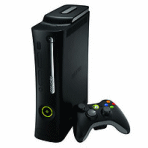 In this page we will look at how to play the content from your TVersity library on the Xbox 360 console through your home network. Remember, if you have the Xbox 360 wireless adapter add-on but haven't yet connected to your wireless network, you can read instructions to do so on Appendix A: Connect Xbox 360 to a Wireless Network. Make sure your TVersity Media Server is running and that you have shared media as shown on the previous page.
NOTE: This section uses the new NXE Dashboard. If you are still using the original Blade Dashboard, click here.
Turn on your Xbox 360 console and make sure it is connected to your network. If any game is in the drive, then tap the Xbox button on your controller and press Y to exit to the Dashboard.
Xbox 360 Dashboard - NXE - My Xbox
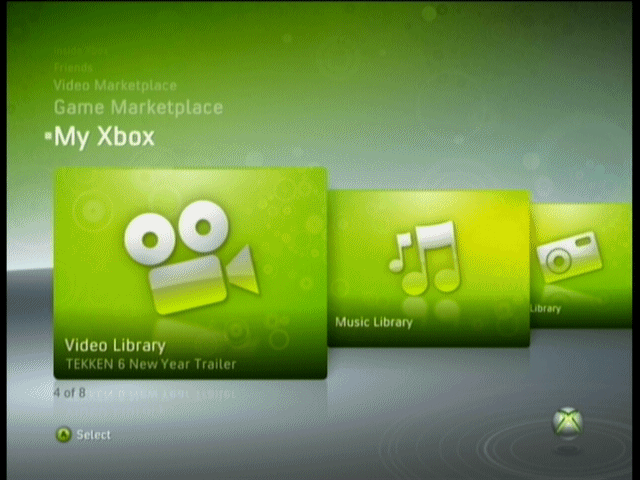
At the Xbox 360 Dashboard, as seen above, scroll across with the remote control or game controller to the Video Library under My Xbox. Press the A button (or OK on remote).
PLEASE NOTE: A lot of the time here you will immediately get a message saying there are no videos present and it will recommend Xbox Live to download video content. What we are actually looking for here is the "Select Source" screen. After selecting Video Library in the My Xbox, press the blue X button on the controller/remote control to get to the Select Source screen.
Select Source Screen
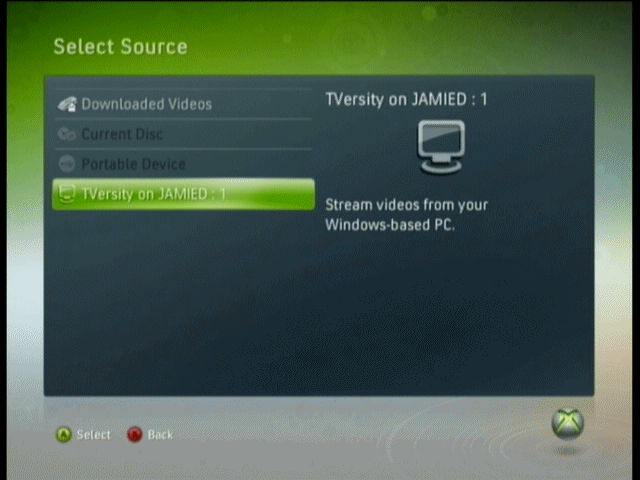
The Select Source Screen always gives you four options: Downloaded Videos, Current Disc, Portable Device and Computer. In my example picture, it already states "TVersity on JAMIED:1" because I have used it before. This might happen for you on your first go (we certainly hope that it does) or it might simple say Windows PC or something similar. Whatever it says, select the fourth option. Please note that you may have to run a "Test Media" check now in order to connect to the computer. If you cannot get connected, please check the official TVersity FAQ for details.
TVersity Server
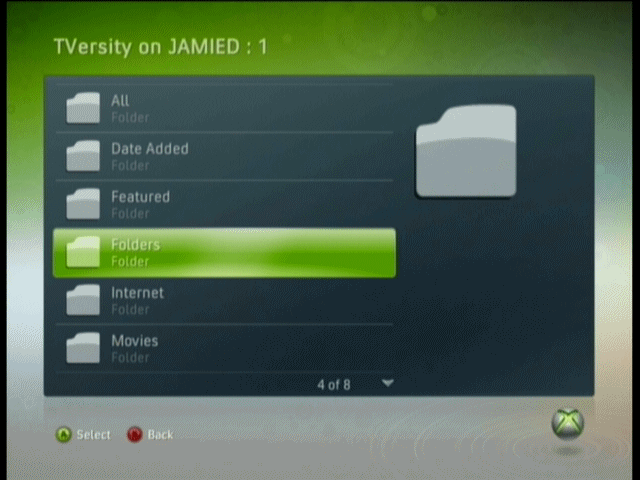
When you get connected to TVersity, the first thing you will see is a bunch of options including; Featured, Internet and Folders. Select Folders and navigate through the options to find your video files. In my example I have created a folder on my hard drive called simply "Video" and I have two short clips inside.
Play Video
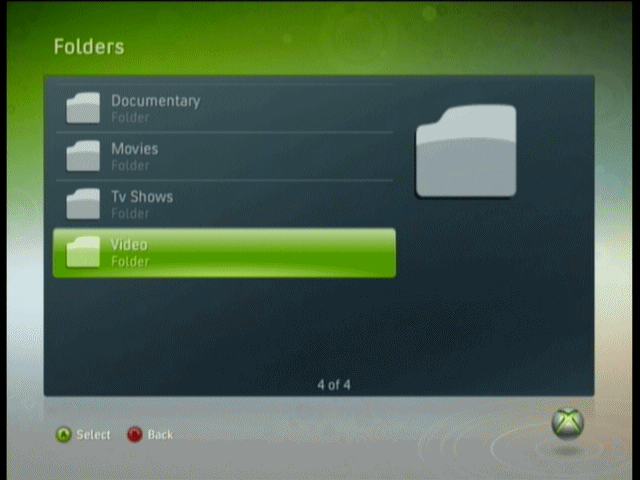
Please note that you might be asked to download and install a Media Update if you try to play DivX video for example. You can change the view setting, fast forward, rewind etc. by pressing A during video playback. Hopefully this will work correctly for you.
Playing Video
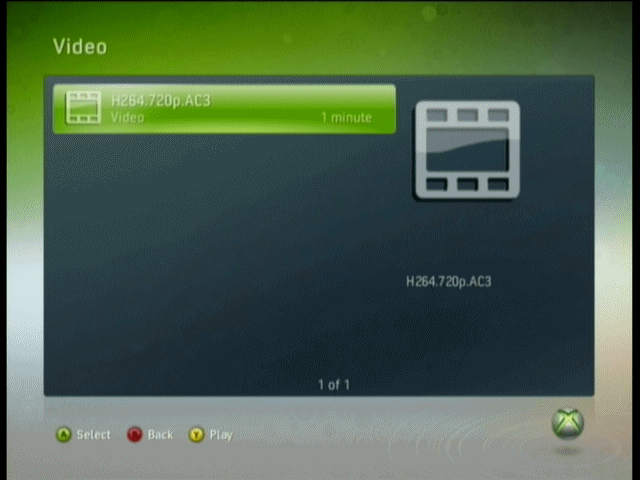
When you come to a video that you want to watch, simply select it as shown above and press A or OK. Then do the same for the "Play" option when it comes up.
Finally
Finally
Hopefully this guide will have helped you to share your multimedia content with your Xbox 360 console. I hope you enjoy it thoroughly. If you experience problems or need further assistance, please visit our Discussion Forums and ask for help there.
What next?
You have completed the guide, you can go back to any page you want with the Navigational bar below or you can read / bookmark instructions on setting up the Xbox 360 on a Wireless Network.
Appendix A: Connect Xbox 360 to a Wireless Network --> This is an optional part of the guide for those that need to setup their Xbox 360 on their wireless network.
| Stream multimedia to Xbox 360 with TVersity | Viewing Page 4 -- Go To |
previousPage 3 - Add Multimedia Content to TVersity
|
nextAppendix A - Connect Xbox 360 to Wireless Network
Written by: James Delahunty