
| Stream multimedia to Xbox 360 with TVersity | Viewing Appendix A -- Go To |
Appendix A - Connect Xbox 360 to Wireless Network
Please Note: This entire page is copied almost entirely from a previous version of this kind so the formatting is slightly different. The steps are still the exact same as before.
Setup Xbox 360 on Wireless Network for Streaming
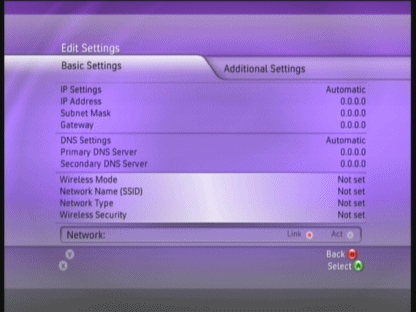 In order to stream multimedia content from your PC to your Xbox 360 console, they both must be on the same network. If you are using a wireless network, make sure you WiFi adapter is plugged in to a USB port on your Xbox 360 and that your router is switched on.
Turn on your Xbox 360 and go to your Dashboard, use your controller to Navigate to Settings. Go to Network Setting and to Edit Settings. What you will see here will be your existing settings for IP address, gateway, DNS servers etc. You can manually configure these by selecting them with the controller and pressing A but it is best for the Xbox to set things up Automatically unless you are completely sure of what you are doing.
Now to detect a Wireless network, select the third box on this page (as selected in picture) and press A. The system will now scan for a network, but if it doesn't recognize any you will have to set it up semi-manually.
Connect to Network
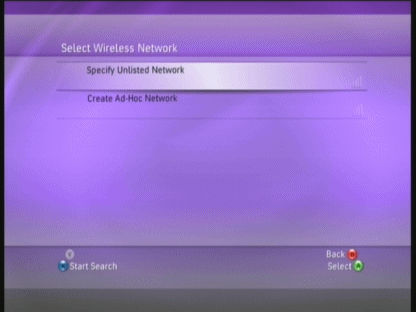 If you see the picture that accompanies this text, then the Xbox 360 has scanned for a network but found none that it is familiar with (if it does show a network, then connect to it and skip ahead to the Wireless Security Settings).
Now select the Specify Unlisted Network option and press A. You will need the SSID of your network.
Get the SSID of your network
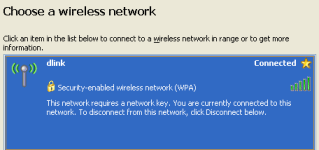 You can get your SSID from your PC. Look at the systray for the WLAN icon (the systrat is the small section of your windows task bar with tiny icons on it, usually to the right of the screen). The icon should look like this ->
  .
.
Right click it and click View Available Wireless Networks. If there are multiple wireless networks listed, then check to see which one has the "Connected" status. The SSID is the name of the network in this list (dlink in the example picture). Also take note of whether it states you have a "security-enable wireless network" and whether its WPA or WEP. If it does, then you must have the preshare key for the Xbox 360 to join the network. You would have set this when you first set up your wireless equipment and if somebody set it up for you, they should have left the key with you. If it says "unsecured wireless network" you don't need to worry about that. Now go back to your Xbox 360 where you have been asked to specify the SSID of your network.
Enter your SSID
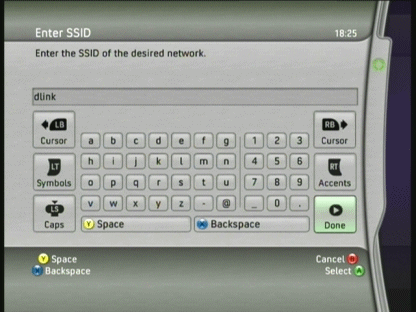 Here you simply use your controller to specify your SSID, in my case, it was dlink. Use X as backspace if you need it. When you are done here, then click Done. The next thing you need to do is determine the Security settings of your network (whether or not there is encryption - wireless networks).
Enter your Security Settings
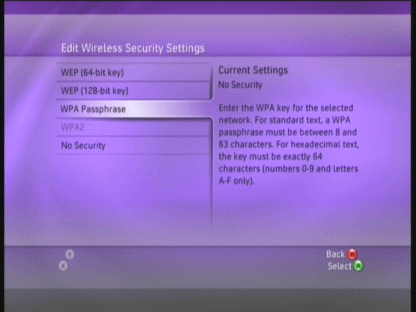 If using a wireless network you will now be asked to determine whether or not your network uses any security. Select whether your network uses a WEP 64-bit key, WEP 128-bit Key or WPA passphrase and click. If you have an unsecured wireless network, select No Security and skip the next paragraph.
Enter Security Key
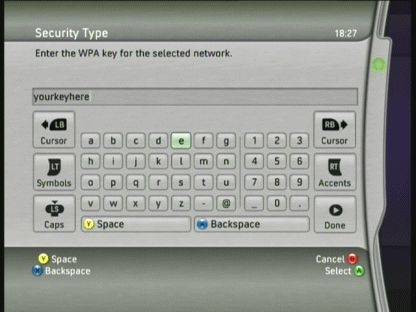 If you have a secured network, enter your security key now. When you are finished, select Done and press A. The Xbox 360 will now attempt to connect to the network. You may have to enter your key again if you get it incorrect.
Test Connection
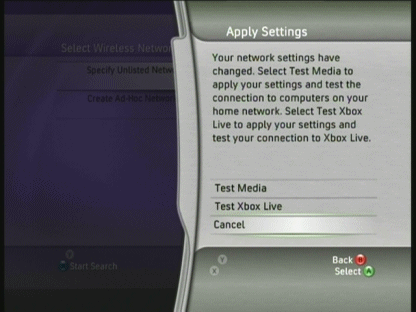 The Xbox 360 will now inform you that your network settings have changed. To run a test of the network now, select Test Media and press A.
Testing Media Connection
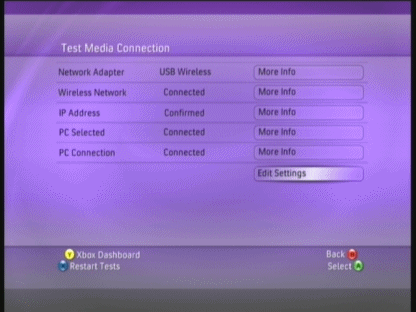 Hopefully the test went OK. If all the elements say "Connected" like in the picture, then everything is fine. If it doesn't, you can check More info. There should be no reason for it to mess up here though if you connected to the wireless network correctly. If problems persist, refer to the Xbox 360 manual or "More Info".
If everything is OK, select Edit Settings and press A.
Network Information
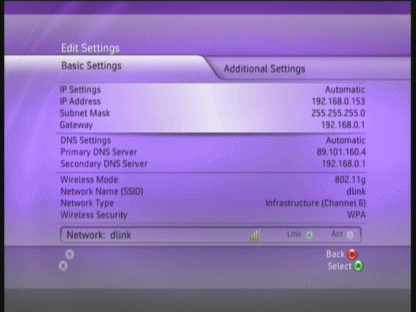 Under Edit Settings, you will now notice that your Xbox 360 has been assigned an IP address by your network. Link should now also show a green light instead of the previous red.
 | Stream multimedia to Xbox 360 with TVersity | Viewing Appendix A -- Go To |
previousPage 4 - Stream Content to Xbox 360
|
nextAppendix B - Stream Content to Xbox 360 (Blade Dash)
Written by: James Delahunty