User User name Password  
   
Friday 5.12.2008 / 10:59 AM
Search:        In English   Suomeksi   På svenska
afterdawn.com > guides > How to split uncut MP3 files using Cue sheets
Show topics
Guides and articles
Guides and articles

How to split uncut MP3 files using Cue sheets


In this quick and simple guide, we will show you how to split uncut MP3 files into individual tracks using the freeware program Medieval CUE splitter. Please be noted that you will need to have an accompanying Cue Sheet for any method to work. Usually these couple of files are generated by programs like EAC (Exact Audio Copy), CDRWin, BPM Studio, GoldWave or similar.

Requirements


There are very few requirements for this guide, all you really need is the program and the uncut MP3 and Cue Sheet you want to split.

Medieval CUE splitter
- CUE Splitter is a freeware tool that can split a single big audio track, mostly an album or a compilation, into the relative individual audio tracks, using informations contained in the associated "CUE" file. Sometimes you can find a big compressed audio file equipped with a small "CUE" text file that contain informations about tracks title, artist and length.

Getting Started


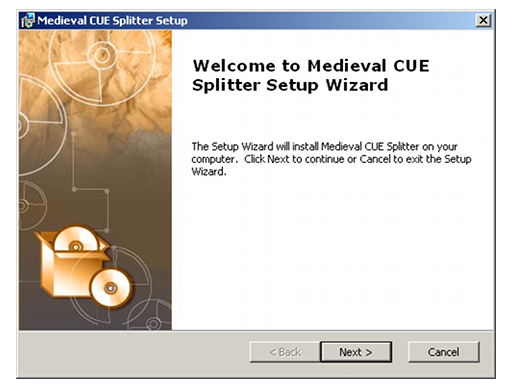
Download and install Cue Splitter and let us open it for the first time and take a look at the interface. It should be pretty straightforward and there isn't much to be changed except language. If you prefer a language other than English (the default) then hit Language on the toolbar and change it :)


Before we get started however, there is one setting we have to make sure of so hit F6 or hit File->Configuration and check the Tag tab. Make sure each option in that tab is checked and hit Accept to get back to the original screen.

It is now time to get this guide started.


Adding the files to Cue Splitter


To open up your uncut music file you have two choices. The first is to drag the actual file into the program. It will then ask you to locate the Cue Sheet. The second method is to simply hit File->Open Cue file and search for the file yourself. Once you have found the CUE hit Open and if the file is valid you will see a preview show up on the right with all the tracks.


We will now go over all the options this powerful program has to offer and finally how to split the file into separate, fully tagged tracks.

Using Cue Splitter


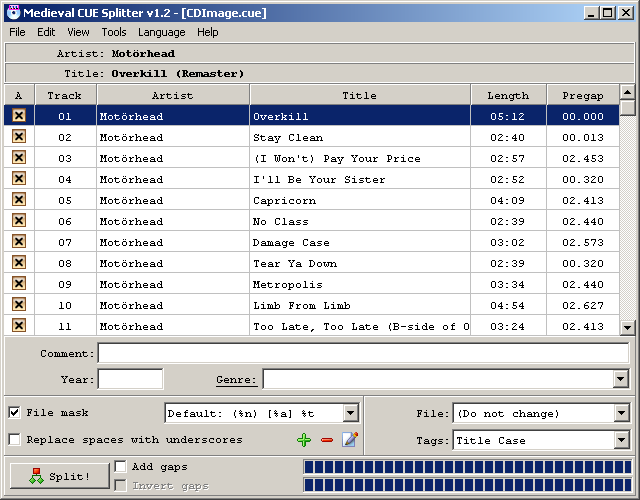
For my example, the MP3 file has been cut into 21 separate tracks, each tagged with its own title and artist. From this page we can do all the editing we want before splitting the tracks so I will go over the options which have been highlighted in the picture at right.


The first, in the top center is the global artist and title for the entire disk. You can modify this by right clicking on either one and hitting Modify data disc.


On the leftmost part of the program, there is a column entitled A which is the select/unselect feature. From there you can choose which tracks you want included or excluded from the eventual split engine processing. You can click on each orange X checkbox to uncheck them or right click and hit Unselect All and then choose which ones you want from there. By default, all tracks will be selected.


Although not necessary and completely optional, I like to have fully tagged items so here we can modify the date and genre of the file. If you are unsure, make sure to look it up online.


The final steps before splitting the files is another optional step. You can choose to replace spaces with underscores for each track and you can add a track pregap to the end of the previous split file.


All that is left now is to look over everything and finally hit Split!. You will then be greeted with a Browse for Folder screen where you get to choose where you want the output files to go when they are split.

The process should be done almost instantly (less than 5 seconds usually) and then you will have all the tracks split, with gaps, fully tagged and in the folder of your choosing :)


Finishing up


Before we finish I just want to link you to a couple of other CUE related guides we have here at Afterdawn that may be of use to you :)

How to play Bin and CUE files- If you have downloaded .bin and .cue files and you are sure that they are video content, then this article will tell you your options on how to play them.

Burning BIN/CUE Images with Nero Burning Rom-BIN/CUE image format is quite common on the Internet. It might seem that finding an appropriate software for burning these images is quite hard. Luckily, it's not. In addition to Golden Hawk CDRWin, the original software for BIN/CUE format, you can also use Nero Burning Rom to burn the images.

Well that seems to be all for this guide and if you have any questions please visit our Discussion Forums and post your query there.

Version History


v1.0 -- First published -- June 16th, 2008 by DVDBack23
Created: 15 June 2008 Last updated: 16 June 2008

Digital video: AfterDawn.com | AfterDawn Forums | DVD X Copy Forums
Music: MP3Lizard.com
Gaming: Blasteroids.com | Blasteroids Forums
Software: Software downloads
Blogs: User profile pages
RSS feeds: AfterDawn.com News | Software updates | AfterDawn Forums
International: AfterDawn in Finnish | AfterDawn in Swedish | download.fi | fin.MP3Lizard.com
Navigate: Search | Site map
About us: About AfterDawn Ltd | Advertise on our sites | Rules, Restrictions, Legal disclaimer & Privacy policy
Contact us: Send feedback | Contact our media sales team
 
  © 1999-2008 by AfterDawn Ltd.